Return a deposit - orderbird MINI

Contact Us

If you still have questions or prefer to get help directly from an agent, please submit a request.
We’ll get back to you as soon as possible.

Please fill out the contact form below and we will reply as soon as possible.

  • Handbuch orderbird MINI
  • Kontakt aufnehmen
English (US)
US English (US)
DE German
  • Startseite
  • Working
  • Deposit

Return a deposit

Written by Jens B.

Updated at June 26th, 2025

Contact Us

If you still have questions or prefer to get help directly from an agent, please submit a request.
We’ll get back to you as soon as possible.

Please fill out the contact form below and we will reply as soon as possible.

  • Starting
    First steps with your orderbird MINI Helpful information to get started Warranty information & care tips Card payment registration TSS and tax number
  • Working
    Deposit Users & Permissions Vouchers Daily work App settings
  • Analyzing
    MY orderbird - Analyze & export sales data MY orderbird - Digital receipts and receipt archive Everything about cashless payment with our partner Worldline American Express DATEV KassenSichV & GoBD Everything about cashless payment with and orderbird MINI our partner Nexi Germany
  • Cashbook
    Starting with your orderbird MINI cashbook Working with your orderbird MINI cashbook
  • Updating
  • Account and Hardware
    Info about your orderbird MINI Your MY orderbird account Multi user: you have more than one MINI device
+ More

Übersicht

Deposit Reporting in the Sales Report How to Report Deposit Returns Separately

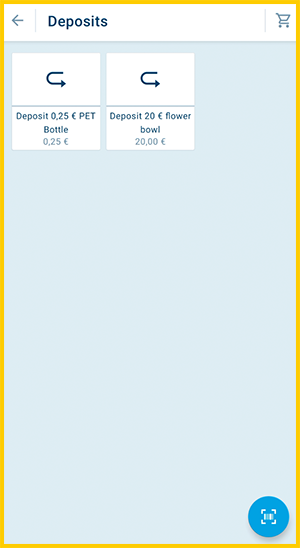
If you want to return a deposit, you select the deposit item you want to return.

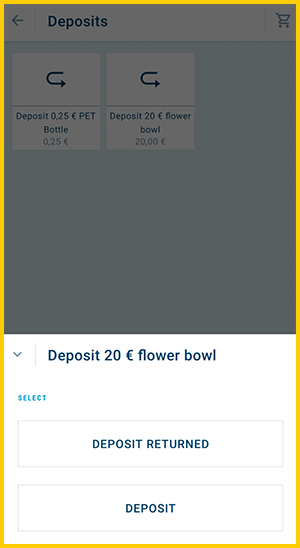
  1. Select the appropriate item, e.g. "Deposit 0.25 bottle" or "Deposit flower bowl 20 €".
    EN_7.6.0_deposit_return_03.png
  2. Select "Deposit returned".
    EN_7.6.0_deposit_return_04.png
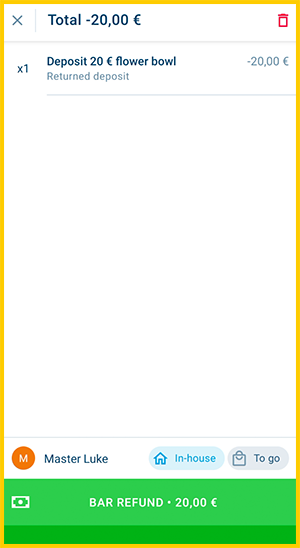
  3. Return the corresponding amount.
    EN_7.6.0_deposit_return_06.png
  4. Done.

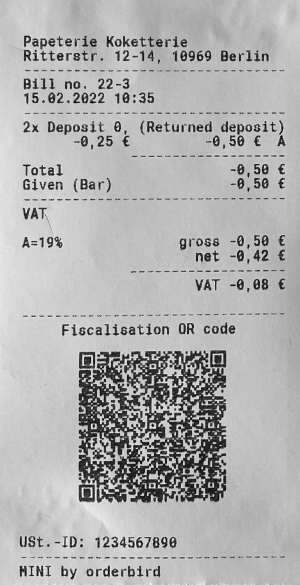
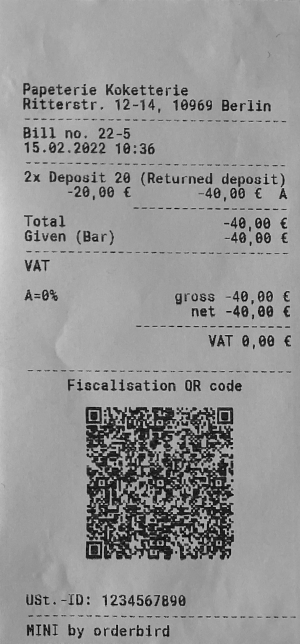
This is how the deposit return is displayed on the receipt:

With 19 % VAT With 0 % VAT
receipt_deposit_19percentVAT_returned.png receipt_deposit_0percentVAT_returned.png

Deposit Reporting in the Sales Report

If you record deposit amounts as described – i.e. for both issuing and returning – both actions will be grouped under the same product in the report. In the sales statistics in MY orderbird, you will therefore only see the total sum of deposits taken and returned. Individual amounts are not listed separately.


How to Report Deposit Returns Separately

If you want to see deposit income and returns separately in your reports, we recommend creating a dedicated product for each type of deposit return – e.g. “Deposit Return Flower Bowl” or “Deposit Return Bottle €0.25”.

Proceed as follows:

  1. Create a new product for the deposit return.
  2. Enter a negative price (tap the price field and place a minus sign in front of the amount).
  3. Make sure the deposit option is not activated in the product settings.

When processing a return, select the corresponding “Deposit Return” product. This way, the return will be shown separately from the deposit income in the report, ensuring clear tracking.

return funds refund deposit

Was this article helpful?

Yes
No
Give feedback about this article

Ähnliche Artikel

  • Add and apply a deposit
  • About handling deposit

Über die orderbird GmbH

Mit über 17.000 Kunden – Restaurants, Cafés, Bars, Clubs, Eisdielen und Biergärten – zählt orderbird zu den führenden Kassensystemen der Gastronomiebranche in Europa. Mit der mobilen Kasse orderbird MINI bietet orderbird darüber hinaus auch eine smarte Kassenlösung für Dienstleister, den Einzelhandel und das Handwerk.

Die orderbird GmbH wurde 2011 von Jakob Schreyer, Bastian Schmidtke, Patrick Brienen-Lucius und Artur Hasselbach gegründet und beschäftigt heute mehr als 130 Mitarbeitende.

Adresse

orderbird GmbH
Ritterstraße 12
D-10969 Berlin
Tel.: 030 208 983 098

Öffnungszeiten

Montag: 09:00 - 18:00 Uhr
Dienstag: 09:00 - 18:00 Uhr
Mittwoch: 09:00 - 18:00 Uhr
Donnerstag: 09:00 - 18:00 Uhr
Freitag: 09:00 - 18:00 Uhr
Samstag: Geschlossen (außer Notfall-Support)
Sonntag: Geschlossen (außer Notfall-Support)


© 2026 orderbird GmbH
  • Impressum
  • Datenschutzerklärung
  • AGB
Expand

Translation Unavailable

This article is currently available only in German. You are viewing the German version.