How to set up your orderbird MINI cashbook

Übersicht
About legal and tax advice
Please take note of the following information!
orderbird does not provide legal or tax advice. Any information regarding legal or tax aspects is under no circumstances to be regarded as legal or tax advice.
In order to provide you with the most reliable instructions possible, our cooperation partner, the Steuerkanzlei Buder (https://steuerbuder.de) from Berlin, has reviewed the procedure described below for using the orderbird cash book and found it to be correct with regard to tax-relevant aspects. Nevertheless, it is possible that this procedure is not applicable to you and your business in particular.
Therefore, it is essential that you contact your tax advisor for a binding statement on how to use the orderbird cash book correctly for your specific needs. Both orderbird and the law firm Steuerkanzlei Buder exclude any liability for the topicality, correctness, and completeness of the information provided by orderbird here regarding tax procedures.
The fastest way to register for the cash book is directly via your orderbird MINI, or you can start the registration at any time from MY orderbird. Registering for the cash book together with the setup takes less than 5 minutes!
Step by step
Step 1: Activate your cash book
Attention! Before registering the cash book, make sure that the business day on the MINI has been closed.
Activate the cash book either on the MINI:
- Open the menu on the MINI and click on "Cash book". You will need admin rights or at least user access to the cash book for this. You can set this up via the user management.
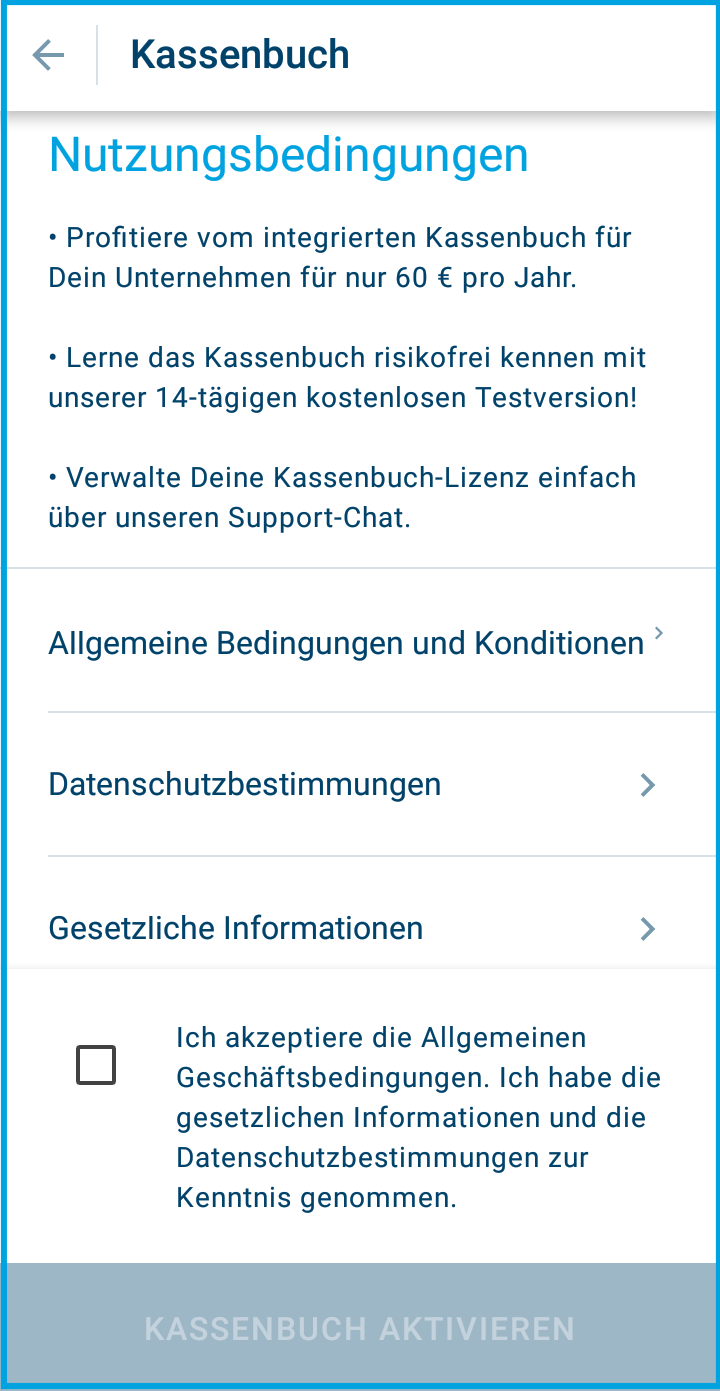
- Confirm the Terms and Conditions (T&Cs).
- Tap "Activate cash book" at the bottom. If you do not have access or permission to activate the cash book, you will be asked for the administrator's PIN.
Or activate the cash book via MY orderbird:
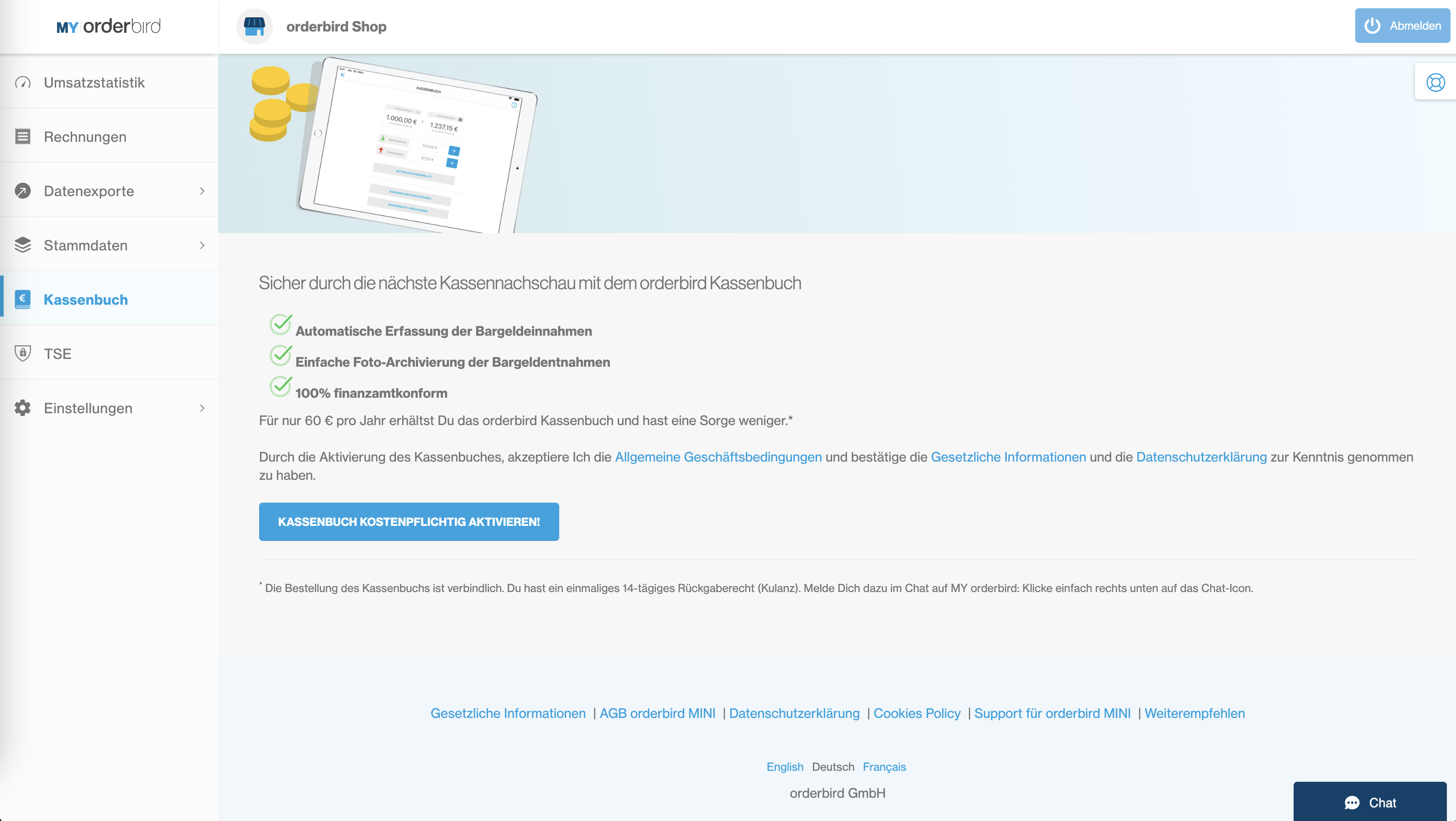
- Log in to MY orderbird and click on the "Cash book" tab.
Here you will see a brief overview of the conditions for using the cash book. Please take a moment to read the terms and conditions carefully. - Click on the button "Activate cash book".
Step 2: Record your initial cash balance
To get started with your new cash book, first record your current cash on hand. Have you already kept a cash book in the past? If so, perform a cash count now and close your previous cash book. Then enter your current cash balance from your till into your new orderbird cash book.
How it works:
- Tap the "+" symbol next to "Cash entry" in the cash book.
- Select "Other" as the type of deposit.
- Enter the amount.
- Select the correct tax rate: This is 0% for the transfer of your cash balance or for a change deposit.
- Use "Add receipt" to add a photo of your (internal) receipt or, for example, the bank withdrawal slip.
- Use the comment field to explain whether you are doing a "Transfer from old cash book" or making a "Change deposit".
If you are doing both, create two separate entries in the cash book (e.g., €50 transfer and €100 from the bank).
Attention
Be sure to consult your tax office about what type of deposit you are making and how to correctly label it in the comment field. A GmbH, for example, cannot make a private deposit from its own pocket, but a sole proprietor can!
If you are only transferring the amount from your old cash book to the new one, point this out to your tax advisor and explain it in the comment field. Since this is just a transfer without a change in inventory, this process must not appear in the bookkeeping later.
Automatic DATEV Export
DATEV export is automatically activated for you. You can find an overview here: MY orderbird > Settings > DATEV Details > Cash book chart of accounts. All manual cash transactions are automatically recorded in the correct format and integrated into your regular DATEV export. This allows your tax advisor to import the complete data set, including all cash inflows and outflows, directly into the accounting system.
Done!
Now you are ready to get started with your new cash book. Learn more here.