CSV-Export: Umsatzanalyse für Fortgeschrittene

Übersicht
Wenn Du Deine Umsatzdaten so richtig unter die Lupe nehmen willst, kannst Du sie als CSV-Datei von MY orderbird auf Deinen Rechner herunterladen und sie dann im Tabellenverarbeitungsprogramm Deiner Wahl weiter analysieren. Im CSV erhältst Du z.B. den DATEV-Bericht oder das Kassenbuch, wenn Du es über MY orderbird herunterlädst.
Was ist das CSV-Format?
Das Dateiformat CSV steht für „Comma/Character-separated values“ und beschreibt den Aufbau einer Textdatei, um einfach strukturierte Daten wie Kassendaten zu speichern oder auszutauschen. Eine CSV-Datei kannst Du dann über ein Tabellenprogramm (z.B. Excel oder das kostenfreie Libre Office) importieren, öffnen und anschließend die Informationen weiterverarbeiten oder drucken.
Wie öffne ich die CSV-Datei?
Es gibt verschiedene Programme, mit denen Du eine CSV-Datei öffnen kannst. Wir zeigen Dir hier am Beispiel von drei Programmen, wie es funktioniert.
Datei importieren
Bitte öffne die Datei keinesfalls einfach so, da dann Formatierungsfehler auftreten können und es zu Problemen bei der Anzeige der Daten kommen kann! Importiere sie richtig als Komma-getrennte Datei in Dein Tabellenverarbeitungsprogramm wie hier beschrieben:
LibreOffice
Wir empfehlen Dir für die Arbeit mit Deiner CSV-Datei die kostenlose Software von LibreOffice, denn damit kannst Du die Dateien mit wenigen Klicks öffnen. Du kannst LibreOffice kostenfrei hier herunterladen: http://de.libreoffice.org/download.
- Nachdem Du die CSV-Datei auf dem Computer gespeichert hast, öffnest Du die Datei in LibreOffice.
- Ein Dialogfenster öffnet sich: Wähle nun in der Liste unter „Zeichensatz“ den Eintrag „System“ aus.
- Als Nächstes legst Du fest, durch welches Zeichen die Werte getrennt sind. Wähle hier nur „Semikolon“ aus.
- Klicke anschließend auf „OK“. Jetzt kannst Du diese Tabelle einfach ausdrucken oder als PDF-Datei speichern.
Google Drive
Wenn Du einen Google-Mail-Account besitzt, dann kannst Du mithilfe von Google Drive die CSV-Datei öffnen und beispielsweise als PDF herunterladen oder direkt drucken.
Schalte vorher in den Einstellungen von Google Drive die Konvertierung ein
- Klicke in Google Drive auf die Einstellungen (Zahnrad)
- Wähle Upload-Einstellungen
- Klicke auf „Hochgeladene Dateien in Googe-Doc Format konvertieren“.
Lade nun die Datei in Google Drive hoch und öffne sie
- Klicke auf „Erstellen“ und wähle „Tabelle“
- Klicke auf „Datei“ und wähle „Importieren“ aus.
- Wähle Deine CSV-Datei aus
- Wähle unter „Trennzeichen“ SEMIKOLON aus und bestätige Deinen Eintrag.
- Wenn Du den Hinweis bekommst, dass „erfolgreich importiert“ werden konnte, kannst Du die Datei als Nächstes „jetzt öffnen“.
- Du kannst sie auch „Herunterladen als …“ PDF, XLS, ODT u.ä. und in Deinen anderen Programmen weiter verwenden.
Excel
Wenn Du Microsoft Excel benutzt, dann gehe bitte nach dem Download der CSV-Datei wie folgt vor:
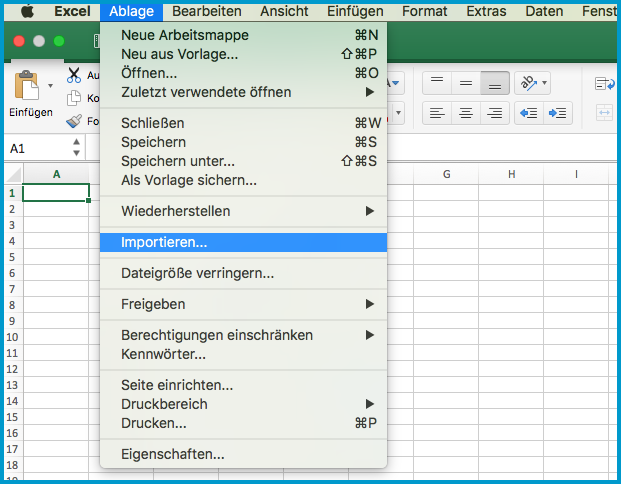
- Öffne ein leeres Excel Dokument und klicke auf Ablage > importieren
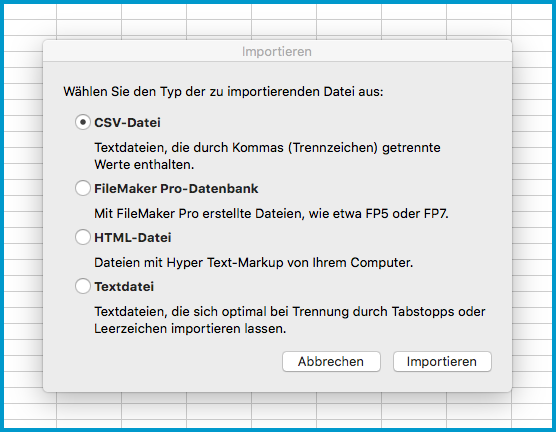
- Im nächsten Schritt wählst Du „CSV-Datei“ als Typ und die Datei aus, die Du eben von my.orderbird.com heruntergeladen hast. Wenn Du mit einem Mac arbeitest, liegt die Datei meistens im Ordner „Downloads“. Wähle die CSV-Datei aus und klicke anschließend auf „Importieren“.
- Wähle im nächsten Schritt „Mit Trennzeichen versehen“ und klicke dann auf „Weiter“.

- Stelle sicher, dass nur bei „Semikolon“ ein Häkchen gesetzt ist. Klicke dann auf „Weiter“.
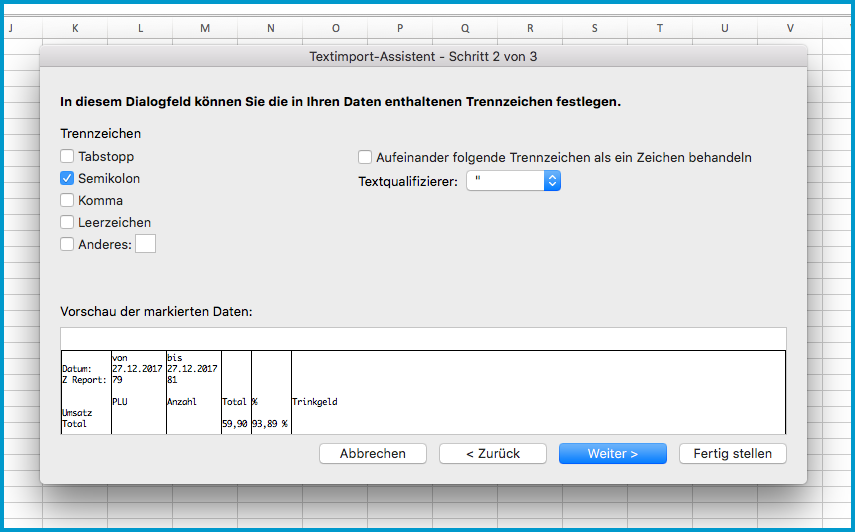
- Halte die SHIFT-Taste auf Deiner Tastatur gedrückt und klicke alle Spalten unter „Vorschau der markierten Daten“ an. Sie sind jetzt alle schwarz hinterlegt. Wähle anschließend „Text“ unter „Datenformat der Spalten“. Die Überschrift für jede Spalte lautet jetzt „Text“.

- Gehe auf „Erweitert“ und setze den Wert von „Dezimaltrennzeichen“ auf „.“ und den Wert von Tausendertrennzeichen auf “ “ (leer). Klicke dann auf „OK“.
- Klicke auf „Fertig stellen“ und anschließend auf „OK“.
Mehr Informationen zum Import in Excel
Bitte achte immer darauf, dass „Komma“ gewählt wird. Mehr Tipps findest Du mit Screenshots im Internet unter folgenden Adressen: