Produkte mit freiem Preis: Verkaufen, On-the-Go anlegen und bestehende auswählen

Übersicht
Ein Produkt ist noch nicht im Produktliste Deines orderbird MINI angelegt, aber die Kund_Innen rennen Dir schon damit die Bude ein? Dann kannst Du es über ein diverses Produkt mit freier Preiseingabe verkaufen oder es sogar on-the-go während der Bestellung anlegen.
Verkaufe ein Produkt mit freiem Preis
- Beginne den Tag.
- Tippe in der Ordneransicht oben auf das [€] Zeichen.
- Gib den gewünschten Preis an. Tippst Du auf den Pfeil mit dem x, kannst Du den Preis korrigieren.
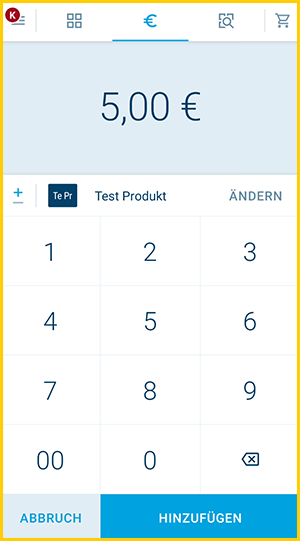
- Unter dem Preis wird Dir angezeigt, welches Produkt mit freiem Preis Du verkaufst. Wenn das angezeigte Produkt das Richtige ist, tippe auf [Hinzufügen], um es in den Warenkorb zu legen.
Falls Du das ausgewählte Produkt ändern möchtest oder ein neues Produkt anlegen willst, lies im nächsten Abschnitt weiter unten weiter. - Fertig! :)
Negativ-Beträge
Schon gewusst? Wenn Du auf das [+/-] vor dem Betrag tippst, kannst Du auch Negativ-Beträge eingeben. Das ist superpraktisch bei einer Rückgabe nach Tagesabschluss.
Negativbeträge werden vom Umsatz abgezogen
Wichtig! Negativbeträge werden von Deinem Umsatz abgezogen, d.h. nutze diese Funktion auf keinen Fall für Bankeinzahlungen!
Erstelle ein neues Produkt mit freiem Preis on-the-go und verkaufe es gleich
- Tippe in der Ordneransicht oben auf das [€] Zeichen.
- Gib den gewünschten Preis an. Tippst Du auf den Pfeil mit dem x, kannst Du den Preis korrigieren.
- Tippe anschließend auf [Ändern] neben dem angezeigten Produkt, um ein neues Produkt anzulegen.
- Tippe unten auf [Neues Produkt hinzufügen].
- Gib den Namen für das Produkt ein, wähle die Kategorie, in der es liegen soll und lege den Steuersatz fest.
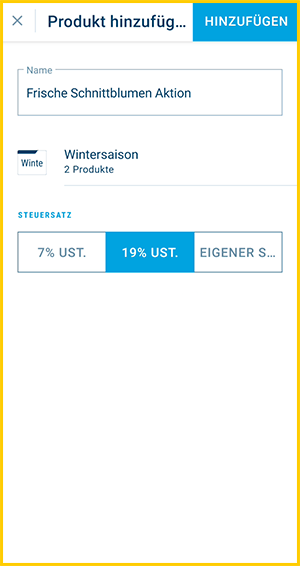
- Tippe auf [Hinzufügen] und im nächsten Schritt auf [Sichern].
- Füge das Produkt zum Warenkorb hinzu.
- Fertig :)
Du kannst weitere Einstellungen für das neue Produkt später über Menü & Produktliste vornehmen, wie zum Beispiel DATEV-Einstellungen, PLU, Barcode, etc.
Wähle ein bestimmtes Produkt mit freiem Preis zum Verkauf aus
- Tippe in der Ordneransicht oben auf das [€] Zeichen.
- Gib den gewünschten Preis an. Tippst Du auf den Pfeil mit dem x, kannst Du den Preis korrigieren.
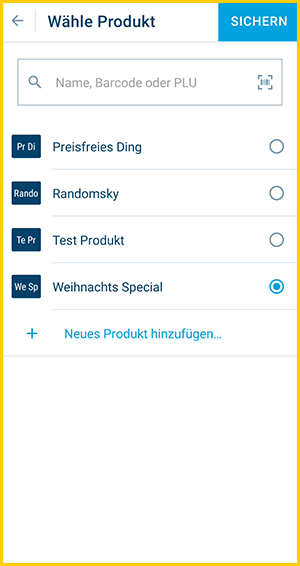
- Tippe anschließend auf [Ändern] neben dem angezeigten Produkt, um ein anderes Produkt auszuwählen.
- Wähle das zu verkaufende Produkt aus und tippe oben rechts auf [Sichern].
- Tippe im nächsten Schritt auf [Hinzufügen].
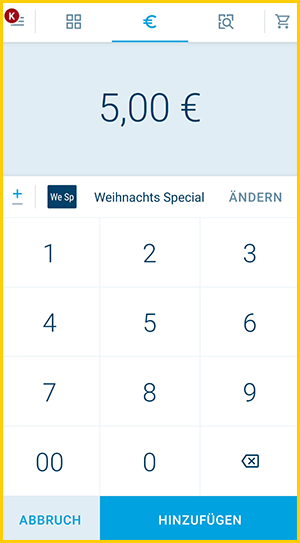
- Fertig :).
Ganz individuell und einmalig
Damit Du weiterhin einmalige Produkte verkaufen kannst, aber Deine Produktliste nicht durch die vielen Frei-Preis-Produkte überläuft, haben wir hier einen Workaround für Dich, um Deine Produktliste sauber und übersichtlich zu halten.
- Erstelle eine Kategorie, z.B. "Einmal-Abrechnungen"
- Verkaufe dann wie oben beschrieben Deine Produkte über [€]
- Lege immer ein neues Produkt an und tippe Deine gewünschten Daten in den Namen.
- Wähle immer die Kategorie, die Du vorher angelegt hast.
- Anschließend kannst Du alle Einmal-Produkte auf einmal löschen, indem Du einfach die Kategorie löscht, z.B. am Ende des Tages oder 1x die Woche
- Denke daran, die Kategorie wieder neu anzulegen für die nächste Ladung an Einmal-Buchungen.
Übrigens: Lege in diese Kategorie keine anderen Produkte, die Du behalten möchtest, denn die werden beim Löschen natürlich ebenfalls entfernt!